Showing posts with label apps. Show all posts

Wednesday, August 31, 2016

Difference Between Look Up's and ValueSets


It is important for the learners to read things in Sequence. Hence you may decide to browse through the Training Index Page.

Difference 1
Value sets can be attached to parameters of a concurrent program, whereas Lookups can't.

Difference 2
Certain types of Lookups are maintainable by the users too, for example HR Users will maintain "Ethnic Minority" lookups. Value Sets are almost never maintained by end users, with the exception of GL Flexfield codes. Value sets are usually maintained by System Administrators.

Difference 3
Value sets can contain values that are a result of an SQL Statement.
Hence it is possible to make Value Set list of values dynamic.
On the contrary, Lookup Codes are Static list of values.

Here comes the end of another simple article...

Difference Between Look Up's and ValueSets


It is important for the learners to read things in Sequence. Hence you may decide to browse through the Training Index Page.

Difference 1
Value sets can be attached to parameters of a concurrent program, whereas Lookups can't.

Difference 2
Certain types of Lookups are maintainable by the users too, for example HR Users will maintain "Ethnic Minority" lookups. Value Sets are almost never maintained by end users, with the exception of GL Flexfield codes. Value sets are usually maintained by System Administrators.

Difference 3
Value sets can contain values that are a result of an SQL Statement.
Hence it is possible to make Value Set list of values dynamic.
On the contrary, Lookup Codes are Static list of values.

Here comes the end of another simple article...

Tuesday, August 30, 2016

Scheduling concurrent program in Oracle Apps


Now let us see how we schedule a concurrent program in Oracle Apps.
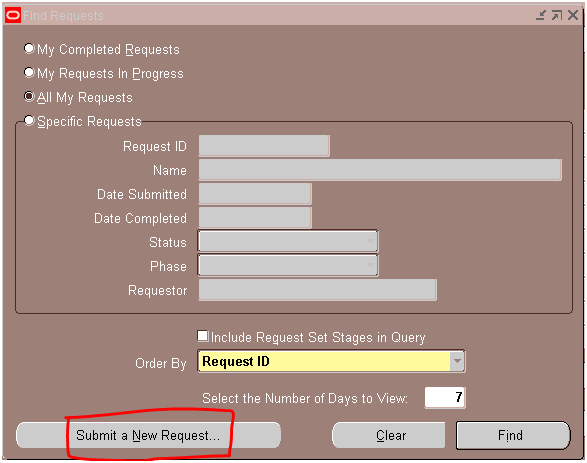
1. Go to the respective responsibility where the concurrent program to be scheduled exists. Then go to View > Requests and click on “Submit a New Request”
Sch1
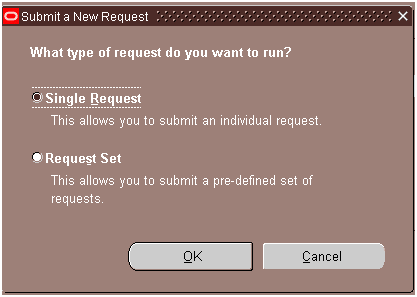
2. Select “Single Request” and click on OK button
Sch2
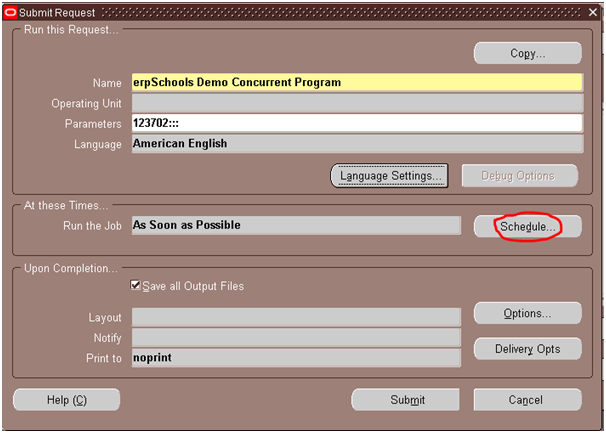
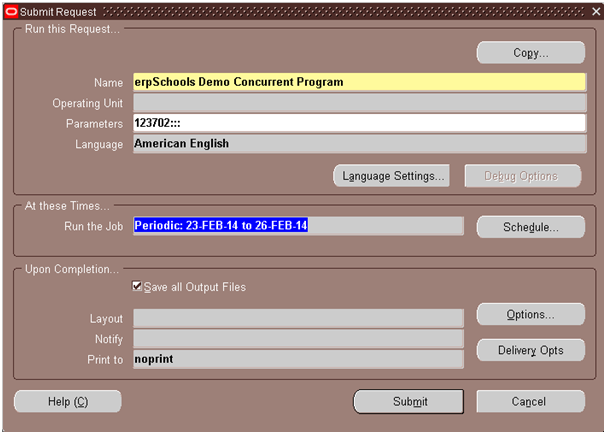
3. Enter the concurrent program name to be scheduled and the respective parameters and click on Schedule button
Sch3
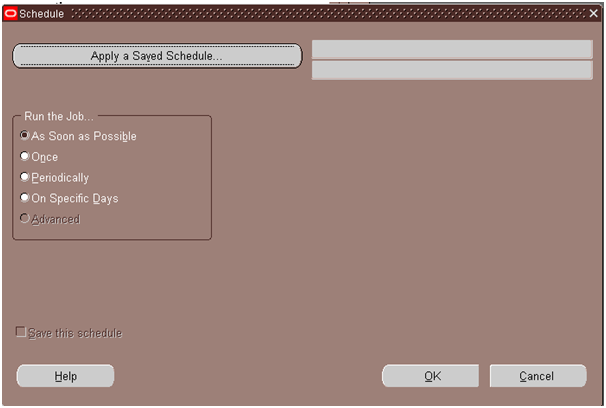
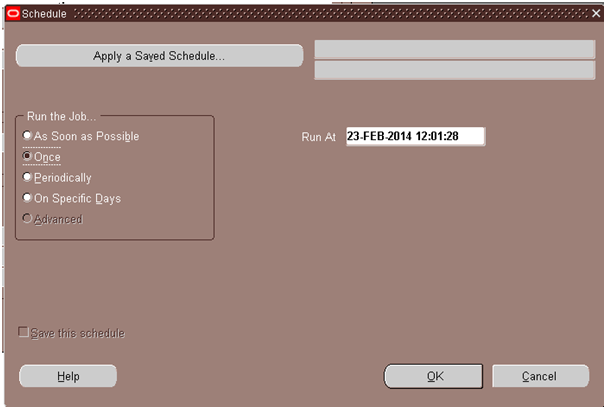
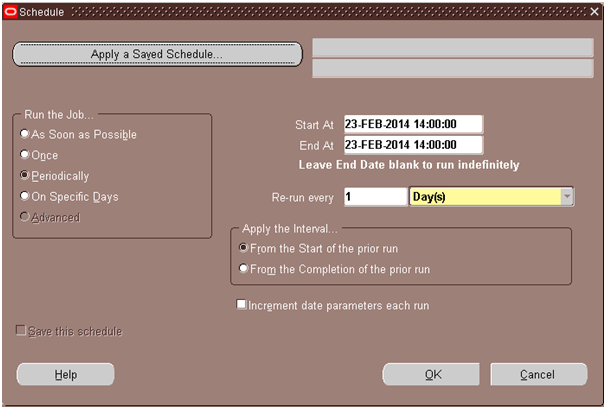
4. This will open up the Schedule window.
Sch4
5. Schedule options: The below are the available scheduling options, we will see what they mean.
(i) As Soon as Possible: Selecting this option will kick off the concurrent program immediately.
(ii) Once: Selecting this option lets you specify at what time and date you want to kick off the concurrent program. The concurrent program will be submitted only once at the specified time and date.
Sch5
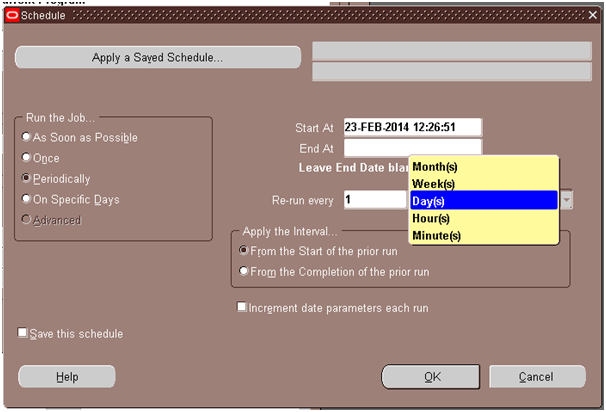
(iii) Periodically: Lets you schedule the program at the specified interval like once a month/week/day/hour/minute.
Sch6
Description of the fields and their importance:
Start At: Enter the date and time when you want to start the schedule
End At: Enter the end date for the schedule. Leaving this blank will run indefinitely.
Re-run every: Specify the interval you want to run like for example – every 1 day or every 2 months.
Apply the interval: How do you want to apply the interval from the start of the prior run or from the completion of the prior run.
Increment date parameters each run: Use this when one of the parameters for your program is a date.
If you check this, the date parameter will be incremented for each run.
If not checked, the date given in the parameter will not increment, it will remain the same as entered while scheduling for every run.
Apply a Saved Schedule: If more than one program has to be scheduled in a similar fashion, instead of entering the schedule details for each and every program, you can save the schedule and apply the same schedule for the remaining programs.
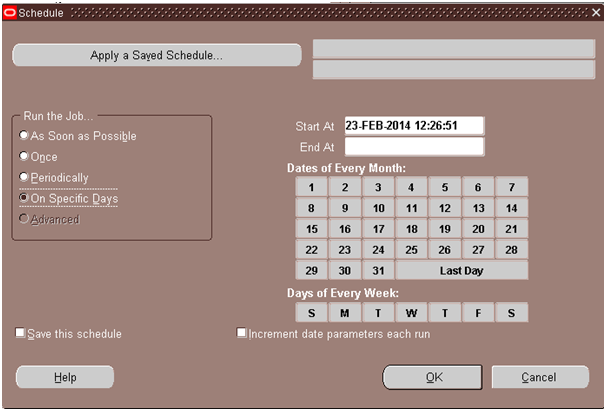
(iv) On Specific Days: Use this if you want to run the program for example on 5th day of every month or on Tuesday of every week,. This option lets you choose on what days of every month you want to run a program.
Sch7
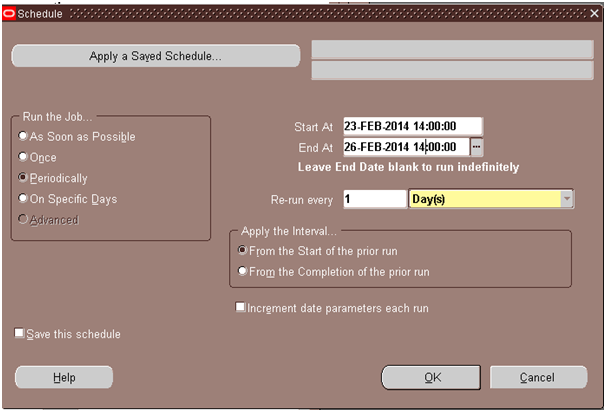
6. Once you specify the interval/frequency you want the program to run, click on OK button. (I have set it to run once a day at 2:00 P.M starting from 23-Feb-2014 till 26-Feb-2014 as seen in the below screenshot)
Sch8
7. Click on Submit button.
Sch9
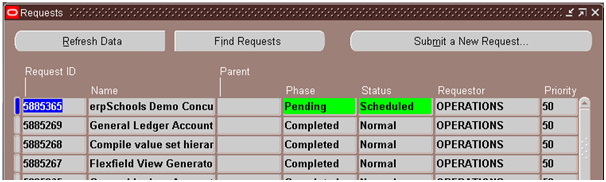
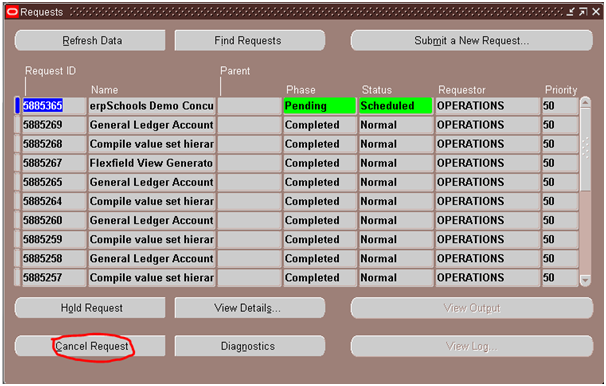
8. Upon querying for the request in the requests window, you see our program with status scheduled. When it’s time, the program will be executed.
Sch10
This is how you schedule a program to run at a specified frequency or interval.
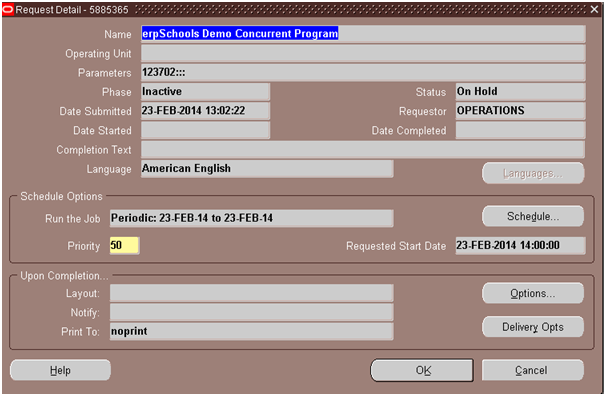
9. At any point of time, if you need to change the schedule, you can select the scheduled request and click on View Details button
Sch11
Then click on Schedule button. Here you can change the schedule as per your wish.
Sch12
10. If you wish to cancel a scheduled request, select the request in the Requests window and click on Cancel Request in Requests window.
Sch13
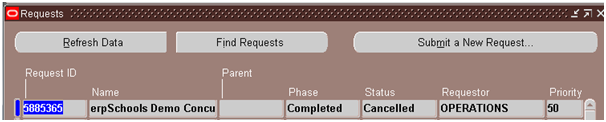
This will prevent the program from running. If you see the below screenshot, status is cancelled.
Sch14
*********************END*************************

Value Sets: Independent, Dependent, Table

1. Define Executable.
Navigation: Application Developer > Concurrent > Executable
Conc Prog 1
Enter Information as below
Note: You don’t really need to have PLSQL package defined for this demo.
Conc Prog 2
Save it.
Navigation: Application Developer > Concurrent > Program
Conc Prog 3
Enter Information as below
Conc Prog 4
Save it.
Assign this Concurrent program to “Application Developer” responsibility by adding it to Request group
Conc Prog 7

Now Start Defining Value Sets.
Independent Value Set:
Navigation: Application Developer > Application > Validation > Sets
value sets 1
value sets 2
Enter information as below
value sets 3
Save it.
value sets 4
Create Values for the value set we defined above
Navigation: Application Developer > Application > Validation > Values
value sets 5
Enter information as below
value sets 6
Save it.
Attach this value set to Concurrent program parameter
Navigation: Application Developer > Concurrent > Program > Parameters
Conc Prog 4
Enter information as below
Conc Prog 5
Save it.
To test the value set try submitting the concurrent program
Navigation: Application Developer > View > Requests > Submit New Request > Single Request > OK
Conc Prog 9
Conc Prog 10
Enter Concurrent Program Name that we defined at the beginning of this tutorial
Conc Prog 11
Click on LOV button to see the values available for this parameter.
Conc Prog 12
———————————————————————————
Dependent Value Set
To define a Dependent value set we also need one Independent value set.
Example: To List down States in a Country we need to have list of Countries for which states need to be defined.
First Define list of countries in a independent value set
Navigation: Application Developer > Application > Validation > Sets
value sets 8
Enter Values for the above value set
Navigation: Application Developer > Application > Validation > Values
value sets 9
Enter Values in the below screen
value sets 10
Now define another Value set
Navigation: Application Developer > Application > Validation > Sets
value sets 11
Click Edit Information Button to link this Dependent Value set with Independent Value set defined in previous step
value sets 12
Enter Values for each country
Navigation: Application Developer > Application > Validation > Values
Ensure to Select Country name in “Independent Value” field before click Find.
value sets 13
Click Find and enter states for Country India
value sets 14
Save it
Now repeat the above two steps to enter states of country USA
value sets 15
Ensure to select country as USA before clicking Find button
value sets 16
Save it.
Navigate to Concurrent Program Parameters screen and enter Country parameter as shown below
Navigation: Application Developer > Concurrent > Program > Query our Concurrent Program > Parameters
Conc Prog 13
Save it.
Add another parameter to link State Value set as shown below
Conc Prog 14
Save it.
To test “Dependent Value set” navigate to concurrent program submission window
Conc Prog 15
Select country and you can observe that list of values in State parameter will change automatically depending on value select in Country parameter field.
Conc Prog 16
Conc Prog 17
——————————————————————————–
Table Type Value Set
Navigation: Application Developer > Application > Validation > Sets
value sets 18
Select Validation type as “Table” and click Edit Information button
Enter information as below
value sets 19
Click Test button validate the information that is entered
value sets 20
Navigate to Concurrent Program Parameters screen and add fourth parameter
value sets 21
Navigate to Concurrent Program Submission window to check the list of values in Parameter-4
Click LOV button on Order Number field to see list of values available from OE_ORDER_HEADERS_ALL table.
These values change dynamically as data changes in the OE_ORDER_HEADERS_ALL table.
Conc Prog 18

                  ******************END****************